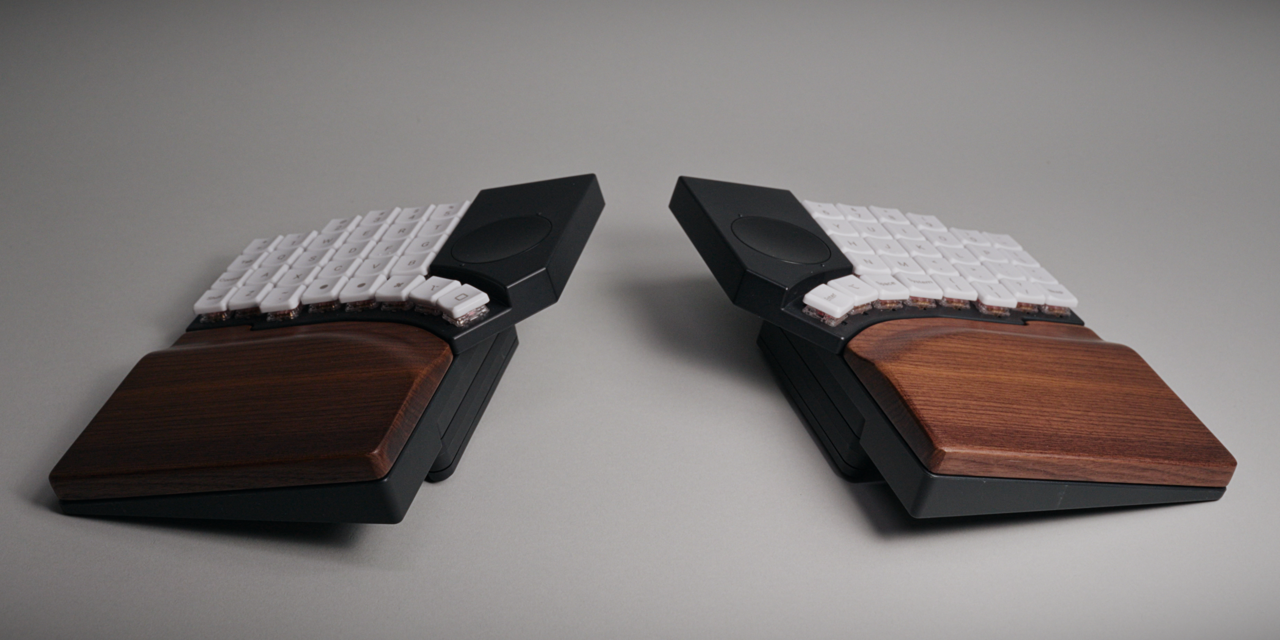
TL;DR I wasn't planning on falling for another split keyboard so soon after the Voyager. But then the MoErgo Go60 showed up with a walnut palm rest in tow, and battery life that made me forget cables even exist.
First I Was Blind.
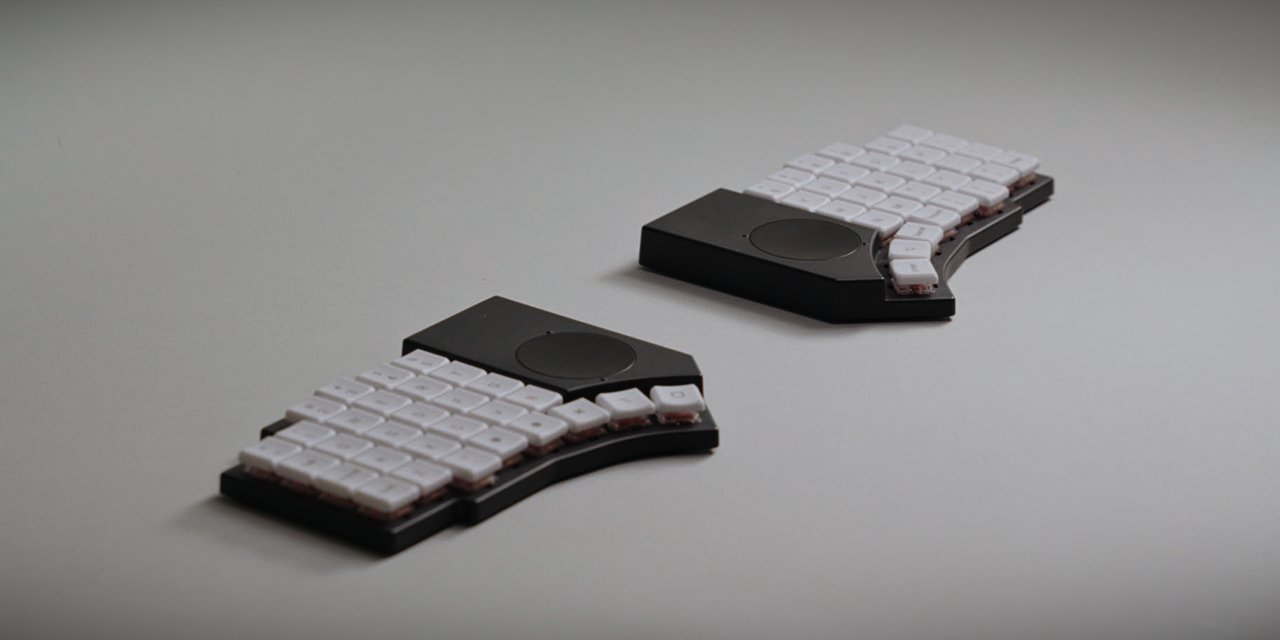
It's no secret that I've been influenced by your comments every now and then. The whole interest in split keyboards came to be that way, and so did my latest acquisition: the MoErgo Go60.
When I first looked it up, I couldn't believe I'd somehow missed its release. Granted, I don't spend as much time on social media as I used to, but still. Glancing at it through the screen and seeing those big circular touchpads, I couldn't help myself but utter, well hello there.
Full disclosure, just like the ZSA Voyager, the Go60 was sent to me by the company that makes them, MoErgo in this case. They did so very kindly after I asked for a review unit, but just like with the Voyager before, they did not read nor see any of this beforehand. This literary catastrophe is of my own creation, and the only ones to judge it will be you.
Build, Price, and the Walnut Palm Rest.
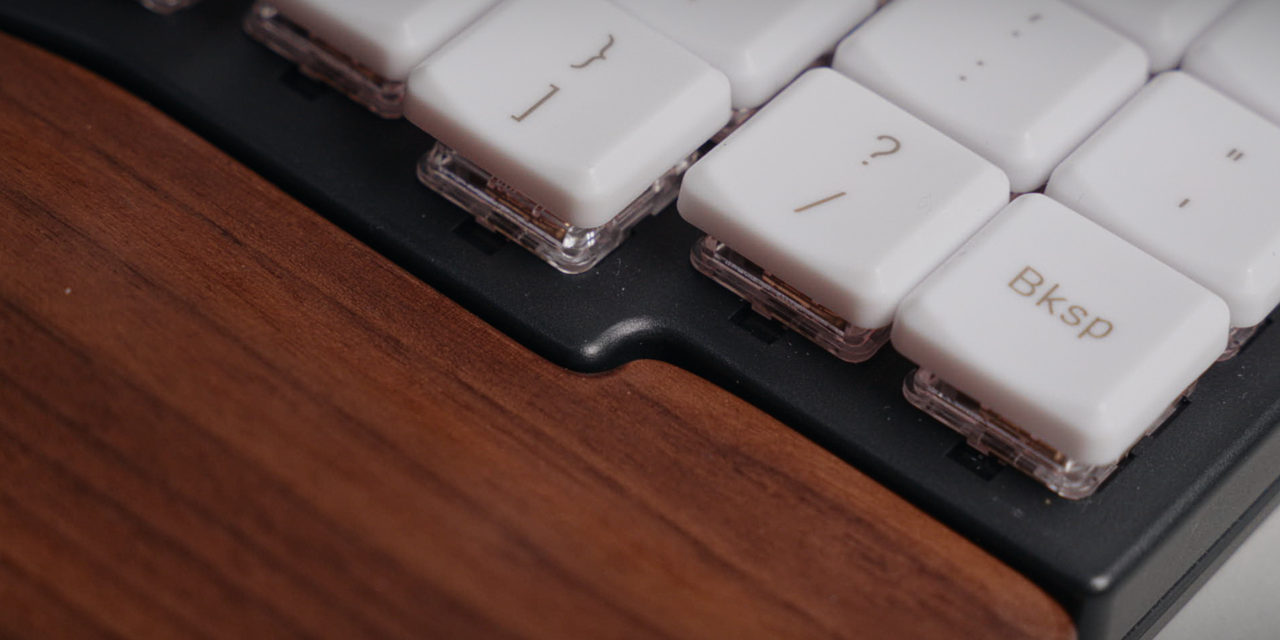
It's going to be hard for me to not compare this to the Voyager, so I won't. Both feel similar in their initial impressions, but the closer I looked the more different they got, with each having their own strengths and weaknesses. Holding the Go60 for the first time, I immediately felt a slightly less rigid, less dense exterior compared to the Voyager and thus, dare I say it, a less premium feel. The all-black enclosure on the Voyager and the subtle rubber edges help convey that.
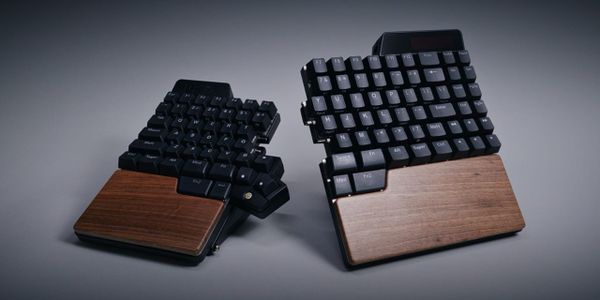
But if you consider that the Go60 starts at $315, which is $50 less than the Voyager, and includes the touchpads, the value proposition starts to shift. There's some pushback though, because if you go for the optional palm rest, that's another $128 on the bill and the gap closes again. In my opinion the palm rest isn't optional, it's a must. And that's coming from somebody who doesn't even like palm or wrist rests all that much.
I've had quite a few cushion crushes over the years but never stayed together with one long term. Granted, this is the first time I'm dating twins with a couch, so maybe this newfound bliss isn't all that special. Regardless, there's something almost divine about how it feels to just rest your entire hands on these slightly angled, semi-book-matched pieces of walnut. As an enthusiast of another finger-acrobatic hobby that revolves around wood (the electric guitar) this felt especially nice. The finish is beautiful, but even more so comfortable. I missed it whenever I didn't have it with me, which was more often than I'd have liked, since its size makes it less ideal for daily commuting.
Carrying Donut, Keycaps, and Switches.
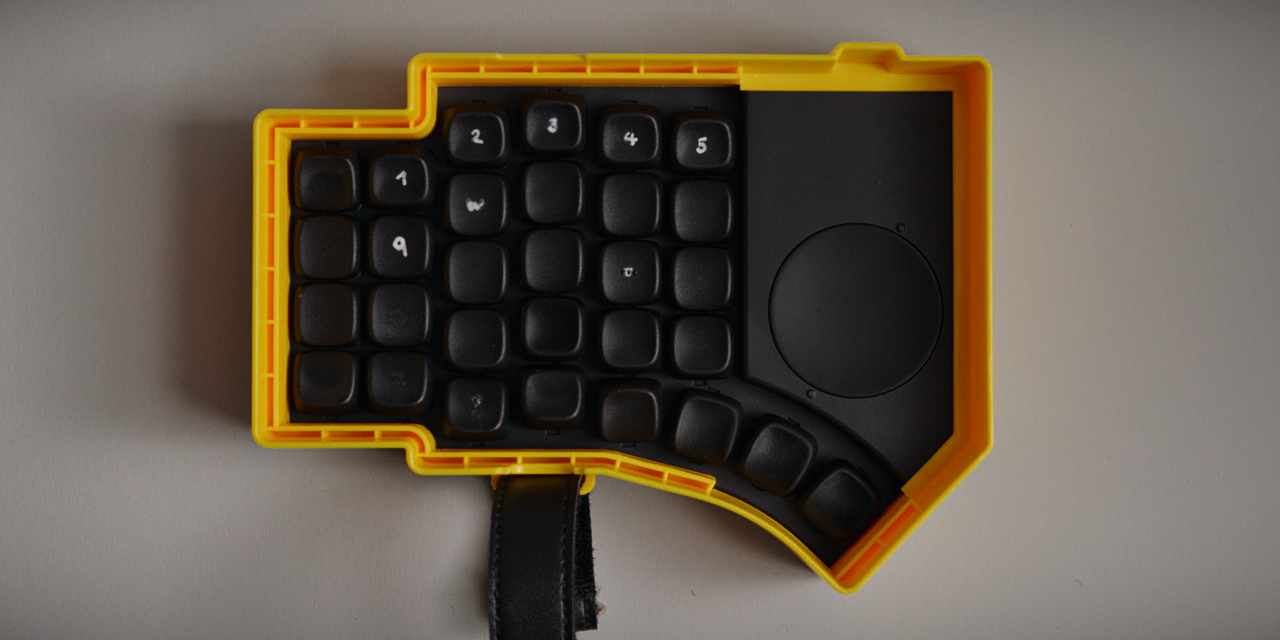
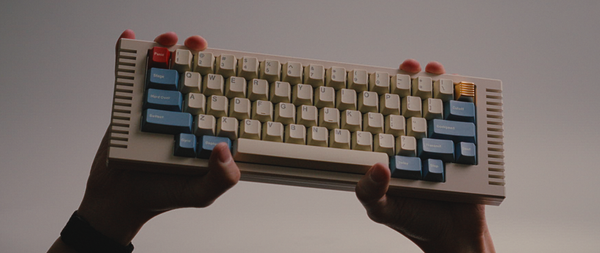
The Go60 itself is a different story. It just about matches the Voyager's dimensions with the Navigator attached. And it includes a very interesting transport method. At first I was questioning this cheese-colored donut contraption, but I quickly began to appreciate the very compact and consistent size of it. The halves rest caps-first against each other with about a millimeter of spare space between them. Luckily that's enough for the slightly taller KLP Lame caps I fitted my unit with. Well, almost. As they say in the bizz, the tips, unfortunately, do touch.
And yes, I attempted to hand-label these because even after a year on splits my brain sometimes still can't memorize squat. Back to the original caps though, I didn't replace them because I had any issues with them, on the contrary. I was actually surprised, once again, by the softer-than-usual feel, due to them being made of POM instead of PBT or ABS. I don't think I've ever had POM keycaps, but this isn't a new invention either. There's a write-up on MoErgo's website on the backstory and longevity, linked below if you're interested.
If there's one thing I could fault the keycaps for, it's that they only ship in a white version. Well, technically MoErgo does offer alternatives, but regardless of board color, white is what you get by default. There's a reason though: they aren't actually white, they're slightly translucent so the RGB and the LED indicators (for the layers, bluetooth profiles, and other features) can shine through. MoErgo says this is also why the lettering isn't as sharp as it could be. I've seen much worse on completely normal PBT keycaps, so I think they're pretty good in that regard. The leveling is spot on.
While we're at it, let's talk switches, which (surprise) surprised me too. After my Voyager review I got quite a few recommendations for the Ambient Silent Choc switches. I ended up not really liking them and reverted back to the Sunsets, which are tactile. Ordering the Go60, I felt compelled to try another silent Choc variant: the Cherry Blossoms, designed in collaboration with Kailh. These feel phenomenal. One thing a viewer caught after the video aired: there's a slight pinging sound from the case when you type a bit harder. It's audible in the original sound demo if you listen for it. I hadn't initially clocked it during use, but once you hear it, you can't unhear it.
If you still want something different, the board is hot-swappable. But there's more: it's also Choc V2 compatible. Choc V1s are common low-profile switches that look like little Bombermen. Most often you'll see those and Gateron low-profile switches. Choc V2s are rising in popularity especially in splits, and the Go60 is fully compatible with them, opening the door to a vast selection of fun switches and keycaps. With caveats, of course. Because of the Choc spacing, you can't just slap any old MX keycap on here. Except maybe on the thumb clusters, where I fitted silent tactile Choc V2s and slapped on my MX-spaced Lames for some giggles. A little blasphemy never hurt anyone.
The 60-Key Layout, Exactly.
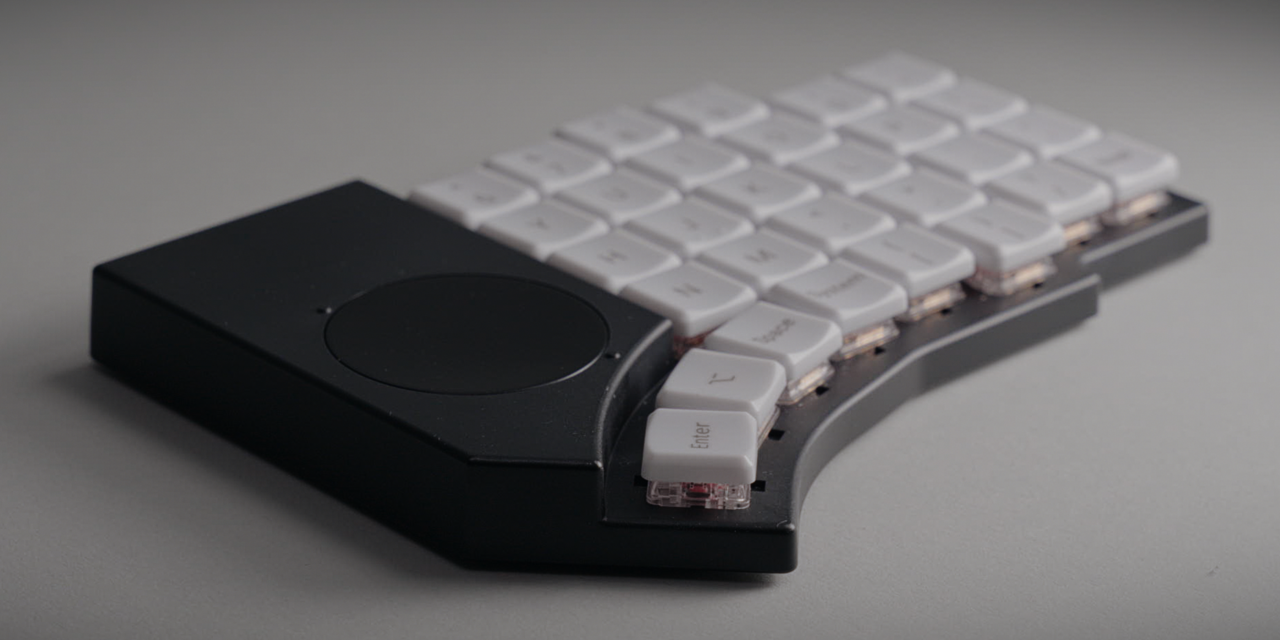
Let's talk about the layout, which is, as the name suggests, 60 keys. And that's 60 exactly, I might add. This is even more than on the Voyager, where, after using 40% keyboards for so long, I struggled to figure out what to do with all the extras. Deja vu is all I have to say here, and is something I'll likely repeat again in months time, on the next video.
The additions are mostly contained in the bottom row, where I actually appreciate them the most. We have a full three thumb keys like on a Corne, and if you want to push it, technically four or even five keys easily reachable by the big stubby. I've selected specific keycaps down there to mark where the limit is and how far my thumb is allowed to wander. Until now at least, it's worked pretty well.
Wandering around the exterior some more, we have individual power buttons, labeled in white as well. Uniformity desires aside, I appreciate the contrasting color choice as it makes spotting them much easier. They have a satisfying long click, and each half pairs in a few seconds.
Wireless, Battery, and Tenting.
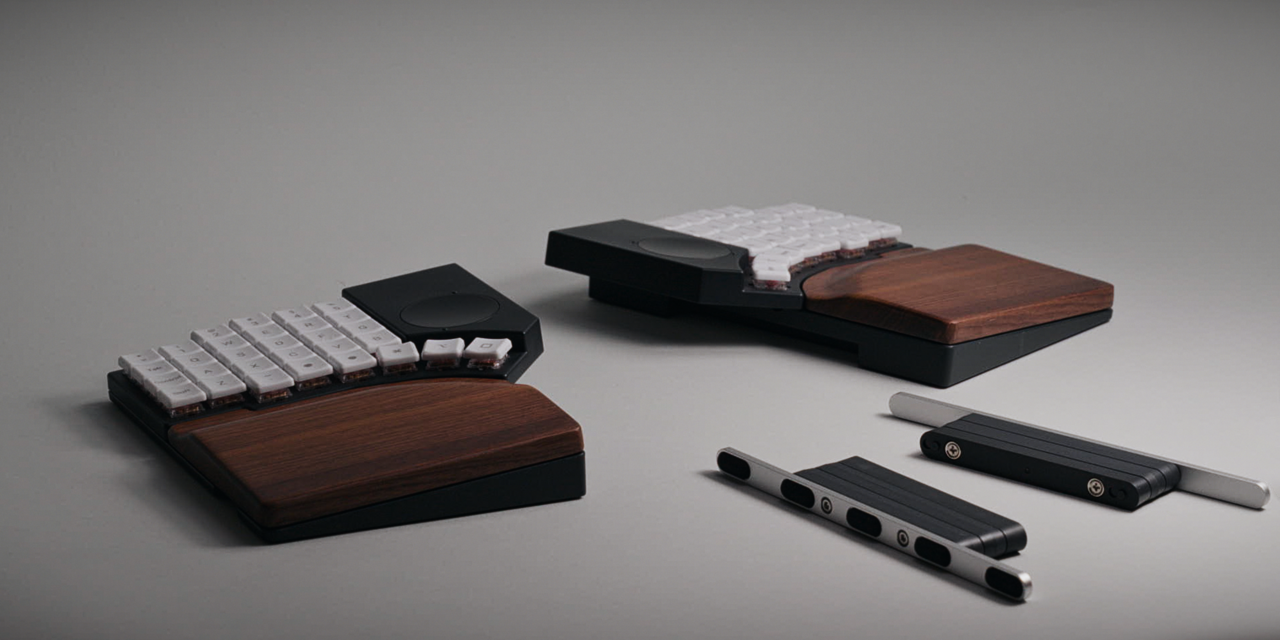
OH, did I mention that the Go60 is wireless? Yeah, that's a big deal to me, a very big deal. And very long too, the battery life that is. I received my Go60 on the 18th of February and have used it in wireless mode almost every day, at work and later at home to print out the previous and this video. At the time of recording this, about three and a half weeks in, I'm at 14%.
This is especially impressive considering there's almost no noticeable wake time on the Go60. Certain keyboards take a few seconds to connect with your computer of choice. Not this one, it has always been immediate. You can also operate the Go60 in wired mode with a classic USB cable on the left and a TRRS cable connecting each half. This configuration also charges both halves at the same time. Plug or unplug the cable and you're dynamically switching between wired and wireless. Pretty cool.
Before we get to the touchpads, let's wrap up the hardware impressions with tenting, a feature found on pretty much every split keyboard in one shape or another. The implementation always varies depending on the make and model. For my limited ergo-split run, the Go60 has the most adjustable rigid option I've used so far. The Naya Create technically has more choices since it's fully adjustable, but in terms of rigid variants, this takes the cake.
Like others, it uses magnets to attach the tenting poles to prop up the center of each half, in order to create a more natural typing position. Here too, I was hesitant at first, questioning the stability and ease of use. The choice of using screws to make adjustments left a fiddly first impression. But I only adjusted it once after reaching my desired angle, and ended up appreciating the freedom of choice over ease of use. In its tallest form, there's a real risk of collapse, but I don't think this is a real-world scenario unless you type with the force of a thousand angry comments.
If you're wondering what happens to the palm rest when you go tenting, it too ships with dedicated poles and you may prop it up just the same. And if you're on the move a lot, don't fret. The carrying donut has you covered, as strapping in the tenting feet is a simple and effective solution.
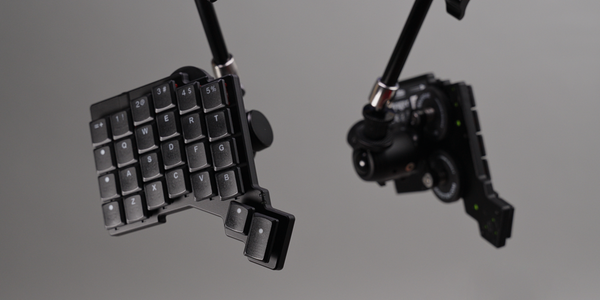
MoErgo also sent me the mounting pucks for the Go60, magnetically attachable 1/4-inch threads you can use to get the keyboard into more exotic positions. For the Voyager I had to jerry-rig something together for demonstration purposes but never actually used it that way. If you're new to splits, this is a common practice to go beyond the physical confinements of tenting feet. I was pleasantly surprised by the feel of it after mounting it to my chair, which was only possible because of the wireless nature of the board. I used two SmallRig magic arms and super clamps, common camera rigging gear you can find on Amazon.
Touching Plastic: The Twin Touchpads.
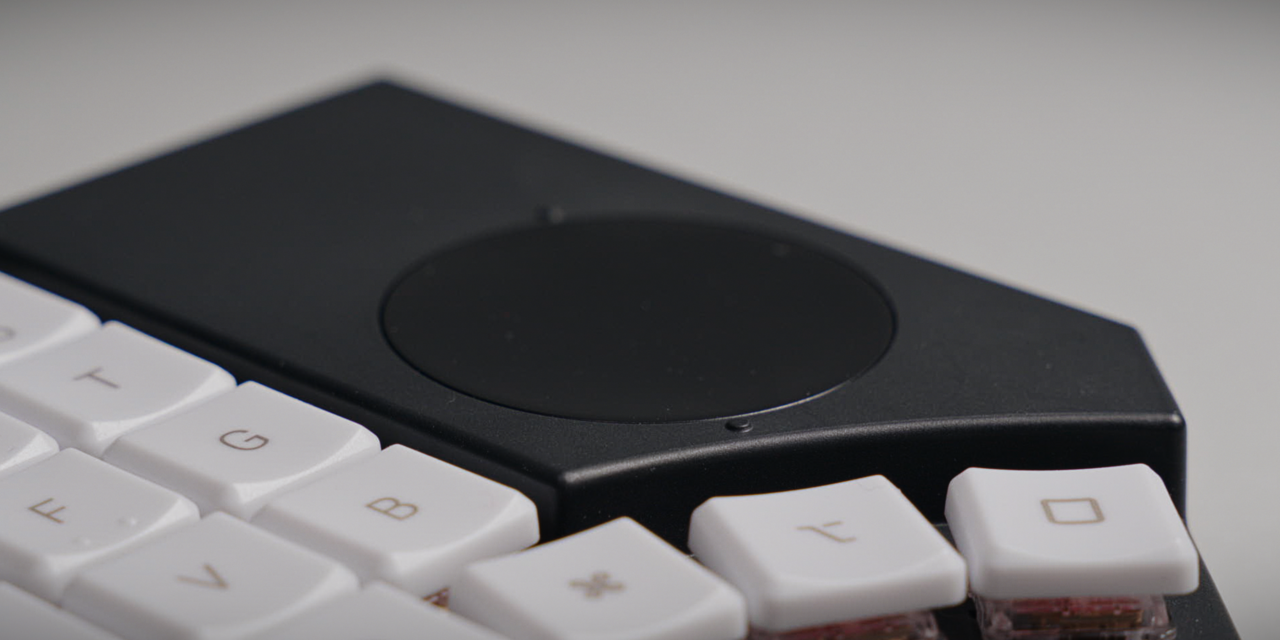
Let's get the elephant out of the room first: the touchpads on the Go60 aren't going to replace a Magic Trackpad. But, like the trackball on the Voyager, they open up a level of convenience that's hard to ignore once it has been set up properly. The fact that there are two also adds an additional layer of flexibility, if not a sense of serenity, as symmetry has been fully restored.
Like I said in my Voyager video, I do enjoy the close proximity of a pointer device I can reach without much movement. That's true with the Go60 as well, with the right touchpad acting as your primary cursor and the left one as your scroll wheel. This is super convenient and lets me do two things at the same time. Finally, years of Dual Shock practice are paying off. Arousing stick-flicking skills aside, this was, and truly is, pretty fun to use.
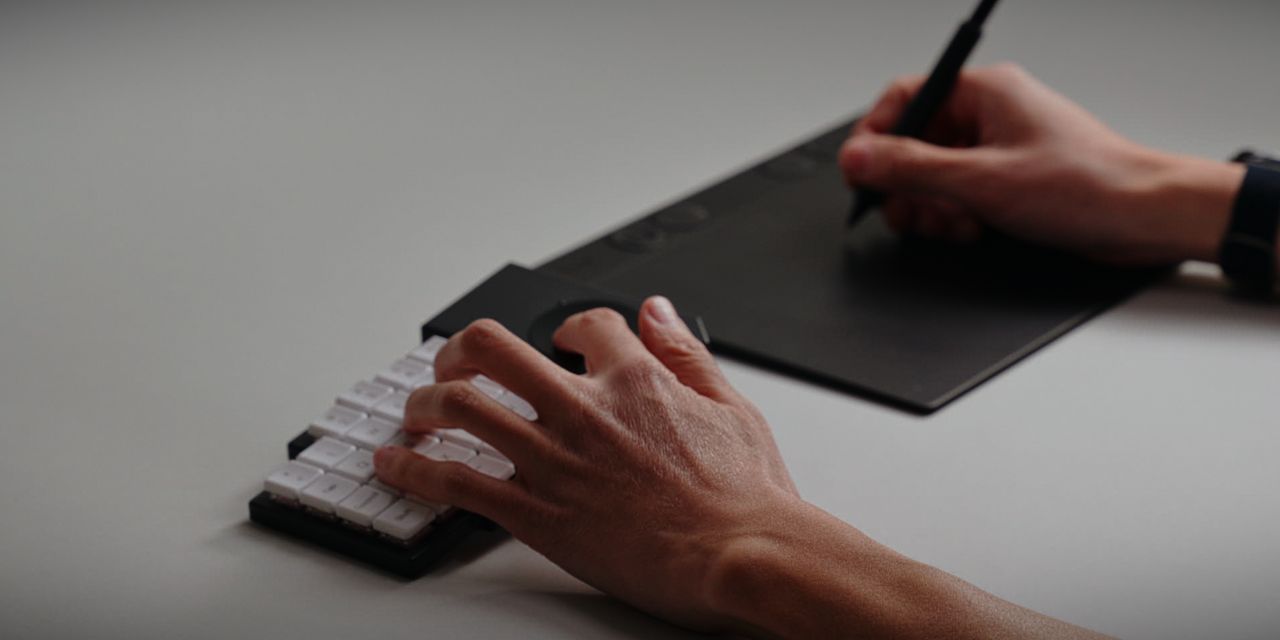
A real-world example: it lets me instantaneously scroll horizontally on my timeline in DaVinci Resolve, my editing software of choice. And because the left hand tends to rest permanently on the keyboard, it sped up a portion of my workflow. Same goes for navigating a canvas, where this works horizontally, vertically, and diagonally. I can't emphasize the flexibility enough, especially if you use a graphics tablet like myself, where you don't have a dedicated scroll wheel (at least not on the pen). I don't have to put down or move any of my hands anywhere. I can do everything now.
It was also quicker to get used to than the Navigator, the Voyager's trackball. There are nitpicks though. One is the limited surface area, which I'll get to in a second. The other is the orientation of the touchpads, because they're slightly angled. If you look closely there are little dimples that point to which direction is up and down. Neat, but my hands didn't align with this out of the gate. I was about 10 degrees off most of the time and only realized when the scrolling behavior kept changing speeds, because I would cross between horizontal and vertical streams. And as one knows, you don't cross the streams. Or swords.
Once my muscle memory kicked in, it was a slip and slide from there on out. Well, almost. You see, sometimes size does matter. And considering I frequently use my 11-inch iPad Pro's touchpad, it wasn't because I wasn't used to something small. Trust me, I am very familiar with handling small things.
Anyway, the issue I'm talking about isn't a Go60 issue, it's an Apple issue. macOS handles scrolling on Magic Trackpads with a fluid, elastic motion. You may flick, and it will just go and bounce around. This helps a lot, especially if your surface area is small. By default though, third-party touchpads don't do this and immediately stop when you lift your finger. Luckily there's help. After almost writing off the touchpad for scrolling, I came across an open-source app called Mos which works fantastically well at recreating this behavior. I don't know how this is on Windows or Linux, but if you're looking to get this working on macOS, this is an option. Two viewer follow-ups worth flagging: SteamInput works as another route for smoothing scroll behavior, and there's an app called mouseless if you'd rather drive the cursor with keyboard combos entirely.
Something I couldn't find a software fix for is the slipperiness of the touchpad. Coming from a Magic Trackpad, both integrated and external, I'm used to one heck of a smooth ride. The Go60's touchpad simply cannot match it. As soon as my hands are a tiny bit wet (don't ask) I get practically stuck. Ironically the surface area beside it actually feels smoother to glide across. As the sweaty season inches closer (not nearly fast enough) I am curious how these will fare with the clammy hands I have. For comparison I think the Naya Create does this a little better, and so does the trackpad attachment on the Ultimate Hacking Keyboard, even though it's even tinier. ZSA has teased one too for the Voyager, so here's hoping they can avoid this as well.
Something I think the trackball does better is dragging or holding. With such a limited surface area, it doesn't take long to run out of real estate, which can be cumbersome if you're in the middle of moving a file around. The trackpad does have a function called "GlideExtent" which holds onto whatever you were clicking while you go past the edge. It's neat and saved me a couple of times. I still think a carefree flick on a trackball is easier though.
With all that said, I may sound a little negative on the touchpads, but I assure you I actually like them a lot. I truly think keyboards with integrated pointers are the way to go for me. They add a layer of navigation that's hard to pass on once you've experienced it. Compared to trackballs, these can be used pretty much anywhere without the fear of losing your marbles.
Software: The ZMK Update Dance.
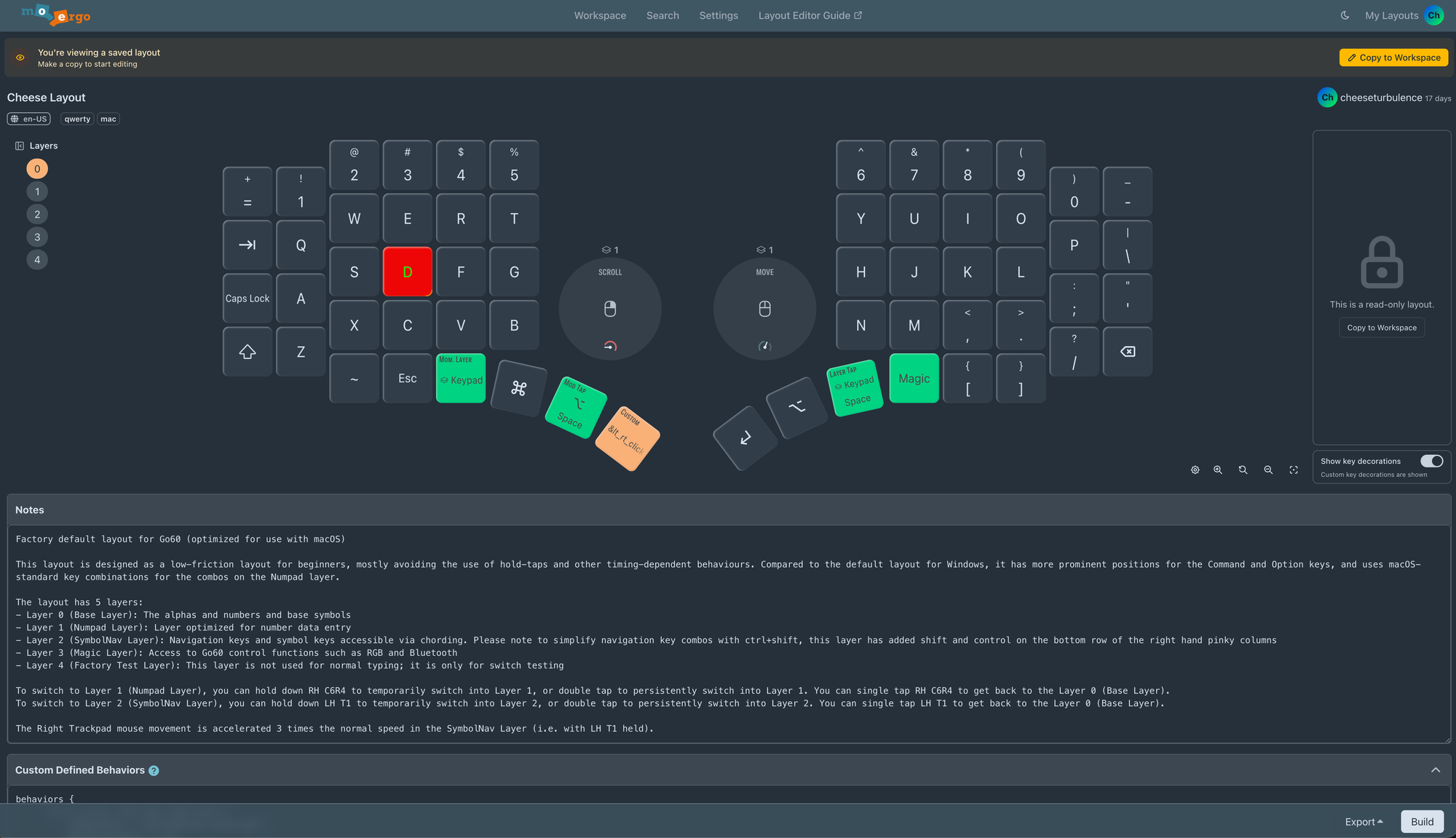
Configuring the Go60 goes much the same way as it did for the Voyager. But just like before, the differences lie in the details. The most immediate one to me was how the actual update process is handled. Once again we don't have the ability to test out changes live. There's a swanky interface, even with customizable themes. But the actual update has to be done manually. Even more so, to be honest, as your config has to be compiled, downloaded, and then transferred to the board.
You do this by turning the board off, plugging it in, holding down the first thumb key from the outside and the third key from both axes, and then turning it back on. An external drive then pops up in your system, which you drag the new firmware file onto. It triggers the automated update process, which finishes by violently ejecting itself, to the absolute horror of your operating system. If you've built a split keyboard before, you might be familiar with this or a similar process. The Boardsource Unicorne, for example, updates very similarly.
It's a little less refined than I'd have liked, but surprisingly ignorable after a while. With remembering which keys to press being the tricky part. Personally I added a little help to assist my aging brain. The process isn't hard, it's actually super easy, but I'd be lying if I said this didn't annoy me at the beginning, especially while I was still familiarizing myself with the new layout and wanted to make frequent changes. I hope one day we get ZMK boards that update just the same way as QMK ones do, instantaneously. Worth flagging that there's a newer firmware called RMK that combines QMK's instant Via updates with ZMK's wireless support — could well be the answer down the line.
So yes, the Go60 runs ZMK and can be configured using MoErgo's custom editor, which is accessible via the web. Your starting point is a base layer, either one by MoErgo or a community one. I chose the default macOS layout, which resulted in something I always love about boards like these. As basic as my preferred layout is, I still like to see what other people or companies come up with. I've been very vocal about my arrow key preferences, keeping them under my right hand on a second layer. The default macOS layout on the Go60 moves these to the left hand. I at first completely dismissed this and remapped it.
But when I started using the board, the touchpad taught me to rely more on my left hand, and then it hit me: if I move the arrow keys as well, the right hand is forever freed up from doing anything but cursor movement. This might sound obvious, but it never occurred to me to configure it like this. I love the fact that my layout keeps evolving with every keyboard I get, simply because I either have to make it work, or in this case, it teaches me a new way.
There's much more to the editor of course. Let's go through what stuck out. One of my favorite recently-discovered functions is tapping to get one key and holding to get another. On Oryx (the editor for the ZSA Voyager) you select the key on your layout you want to modify, then assign the respective character or function to the command. Here, you have to select a type first, in this case ModTap. You then select the two characters you want to trigger depending on tap or hold. Both approaches work great, but I wish I could do this with mouse clicks too. In ModTap the selection is currently limited to regular keys, unlike Oryx where you can assign pretty much anything anywhere.
I wanted this because I had the idea for one of the thumb keys to act as left-click on tap and right-click when held. I initially thought this wasn't possible with ModTap — though MoErgo wrote in after the video aired to point out a native hold-tap definition for mouse clicks I'd missed. The route I'd already gone down was a really cool feature called "Custom Defined Behaviors" that lets me add custom code to achieve exactly that. It's not as user-friendly as going through the UI, but it works great once I figured out how to write it. And by "how", I mean I asked Claude to do it for me and then just copy-pasted the code into the field.
Mod-Tap and Layer-Tap are more standardized terms when it comes to ZMK. If you're familiar with this, you'll be right at home. Unlike me. Another really interesting feature is "Mouse Emulation", which lets you intercept mouse events to translate or modify them. One example is the temporary layer, meaning you can have a layer activated whenever you move the mouse. If you've watched my Voyager video, you'll know this is how the Navigator trackball attachment works, since it doesn't have any physical buttons.
Here you can just tap for left-click, and there are even more gestures to learn but no multi-touch. So in order to get a right-click, you can use this function to trigger a layer with mouse buttons as soon as you touch the trackpad, deactivating again after a little delay. You can chain these and do quite crazy things, like inverting scrolling behaviors depending on certain conditions, or reassigning mouse clicks to keyboard keys, and more. The extensive level of customization is impressive and showcases one of the biggest differences I felt between the Go60 and the Voyager. There's a big asterisk though: you can do all of this with the Voyager too. Both are highly configurable, it's just a matter of how.
A more differentiating feature is the mobile-friendliness of the editor. If you've ever had a configuration epiphany during a commute, MoErgo has you covered, as the editor is fully responsive. What's not available by default is per-key RGB customization, at least not as a stock function. There are ways to get this working though. Initially I was a tiny bit confused because the UI does let you assign colors, but this is for orientation purposes and doesn't apply to the actual board.
Another interesting feature is layout localization, which I found very intriguing. It's not something I'm likely to ever use, but it's also not something I'd come across before. Essentially you can configure your board to your heart's content and then see how it will fare if you plug it into a machine with a different locale. If you're working in an environment with very tight restrictions on what you can change on your computer, this might come in very handy. Finally, there are Custom Device-tree definitions, which override default ZMK behaviors as far as I understand. Which I don't.
Conclusion: A Surprise.
I loved the Voyager, unsurprisingly considering its popularity. The Go60 entered the ring having to face a tough competitor right off the heels of a big win. Yet I was continually surprised by how well it did in said ring, and I can see how many, including myself, are potentially pondering between these two.
Apart from the form factor, nearly every other detail about these two is different. For me the Go60's initial quirkiness turned out to add so much to its charm and unique approach, whether that's the choice of dual touchpads, or having Choc V1 and V2s as an option. But the most striking one of all is the optional palm rest. Yes, you can 3D-print a similar support for the Voyager. But the wood finish adds a level of natural comfort that's otherwise just not obtainable.
Then there's the wireless functionality. This is something I've longed for for a while now, and I was prepared to fight some quirky behavior. To my surprise again, it's been rock solid and never dropped while I was using it. Equally impressive is the battery life. I am still running on the first charge and it has wholly convinced me to leave the house without any anxiety. This might sound benign but isn't always the case with boards like these.
Over the course of the last month I've really grown to appreciate the touchpads, whether that's the convenience of having no moving parts, or making transportation effortless. Or the fact that the combination of scroll and pointer is something I didn't know I'd love this much. If I had one wish, it would be multi-touch. I know the Naya does this, although it's been a while since I've used that board (it's still broken) so I can't make a fair comparison. But every now and then, whenever I use my Magic Trackpad, I do get reminded of how convenient that addition could be.
The Go60 is a strikingly complete-feeling product. Yes, some experiences could use a bit more polish. But to no extent did I find any part of it lacking to the point where I couldn't recommend it. The biggest question remains, one I ask myself nearly every morning as I pack my bag for work: which one will I take with me after this video is done? Will it still be the Go60, or will I revert back to the Voyager? Luckily that decision is off my hands, because the answer is the UHK80. As that is the next video. A cop out? Most definitely.
P.S. — A few of the tweaks above landed thanks to viewers and MoErgo writing in after the video aired. The full appendix lives in the first issue of The Cheesy Times, my new newsletter.
Mentioned Things
Pros
- Walnut palm rest is divine and a must IMO
- Dual touchpads are fun and actually improved my workflow (like the Navigator trackball)
- Wireless battery life is amazing
- Choc V1 and V2 hot-swap compatibility
- Carrying donut is compact and delicious
Cons
- Touchpad surface can get sticky with damp hands
- Configuration update can be a hassle
- No multi-touch on the touchpads
- Default keycaps only ship in white
- Palm rest pushes the price up significantly